

curl.
1
Turn on test mode
In the Paperjoy app, open the account menu in the top right corner and turn on Tryb testowy (Test mode).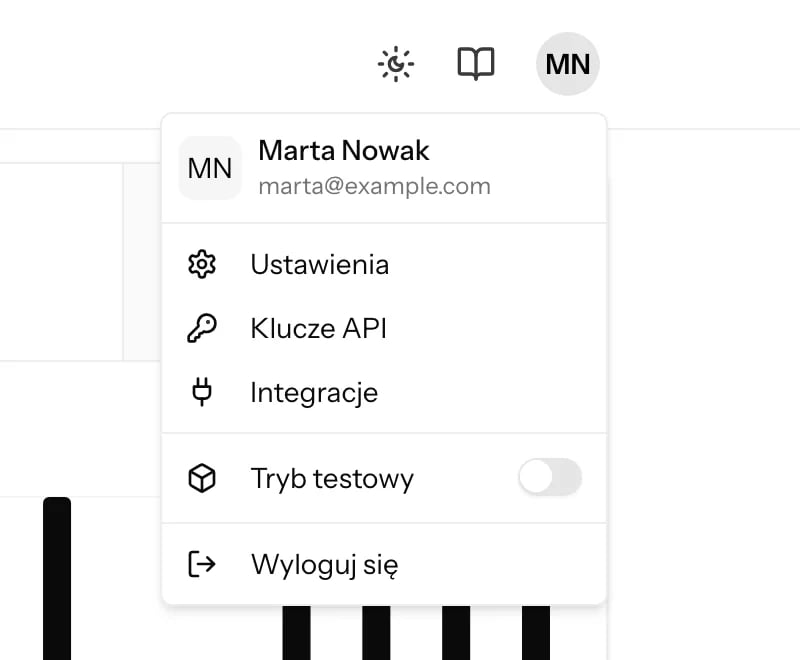
2
Create a test API key
Open Ustawienia → Klucze API (Settings → API keys), enter a name such as 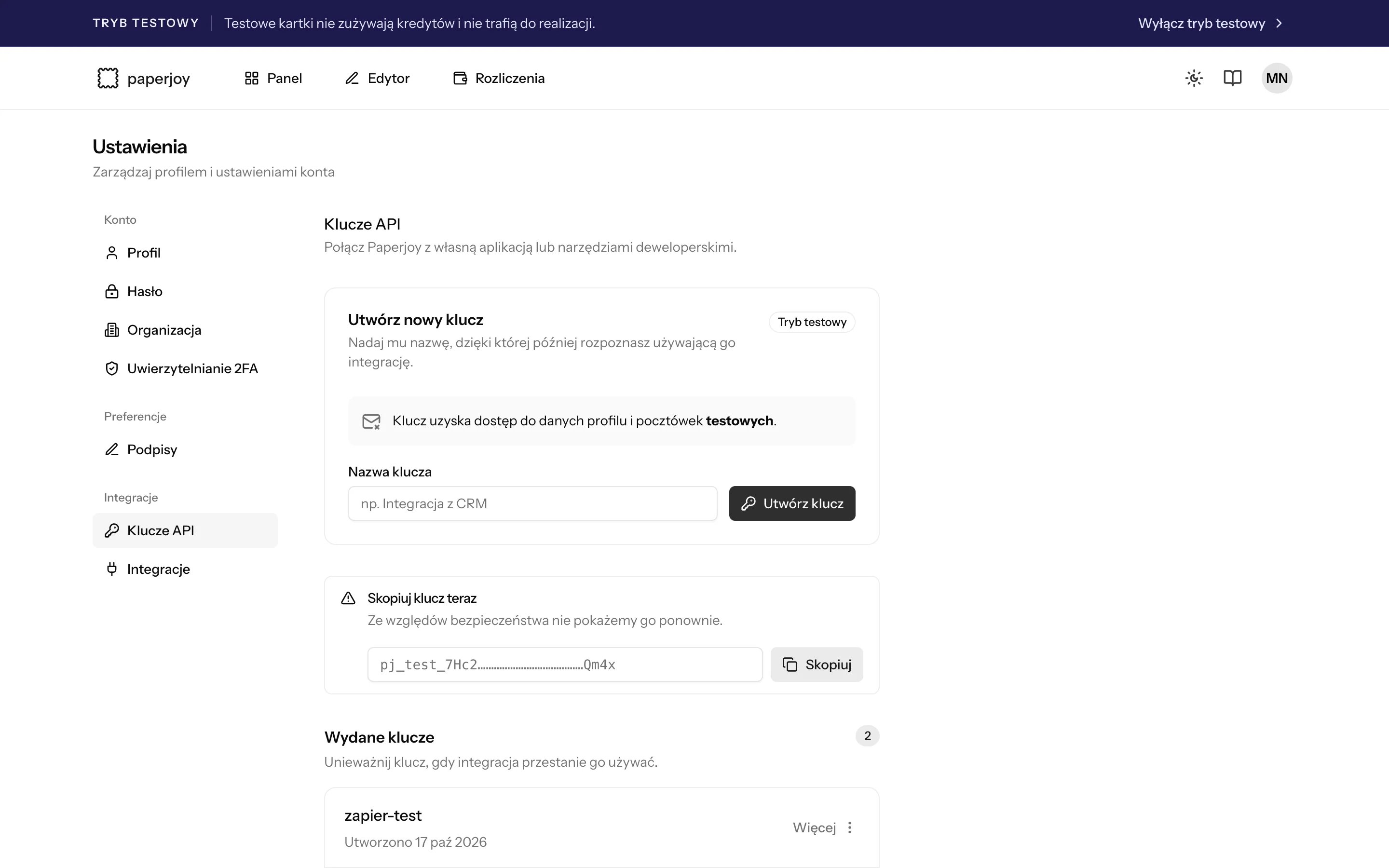
quickstart, and click Utwórz klucz (Create key).pj_test_, then save it in your shell:3
Create a test postcard
201 Created and the new postcard:"test_mode": true confirms that no credit was used. Save the id to look the postcard up later.The
Idempotency-Key header makes retries safe. If the network drops and you’re unsure whether the request worked, resend the exact same request with the same key. Paperjoy returns the original postcard instead of creating a second one. See Create a postcard.4
Check the status
new to queued. A test postcard stops there; it never enters production. The card also appears on the Panel (Dashboard) page while test mode is on.5
Go live
When your integration works:
- Turn off test mode in the account menu.
- Buy credits if your balance is empty.
- Create a new API key. It starts with
pj_live_. - Replace the test key in your integration.
Next steps
Write the card
Fonts, line breaks, signatures, and how much text fits.
Preview before you order
Render the card as a PNG for free.
Create a postcard
Every field, validation rule, and safe retries.
Handle errors
Status codes, rate limits, and what to retry.