

Connect your assistant
You don’t need an API key. The first time your assistant connects, a browser window asks you to sign in to Paperjoy and approve access.- Claude
- Claude Code
- Codex
- Cursor
- Other clients
In Claude (web or desktop app):
- Open Settings → Connectors and choose Add custom connector.
- Name it
Paperjoyand pastehttps://paperjoy.co/mcpas the URL. - Click Add, then Connect, and approve access in the window that opens.
Don’t add Paperjoy to
claude_desktop_config.json. That file is for local servers; remote servers like Paperjoy are custom connectors.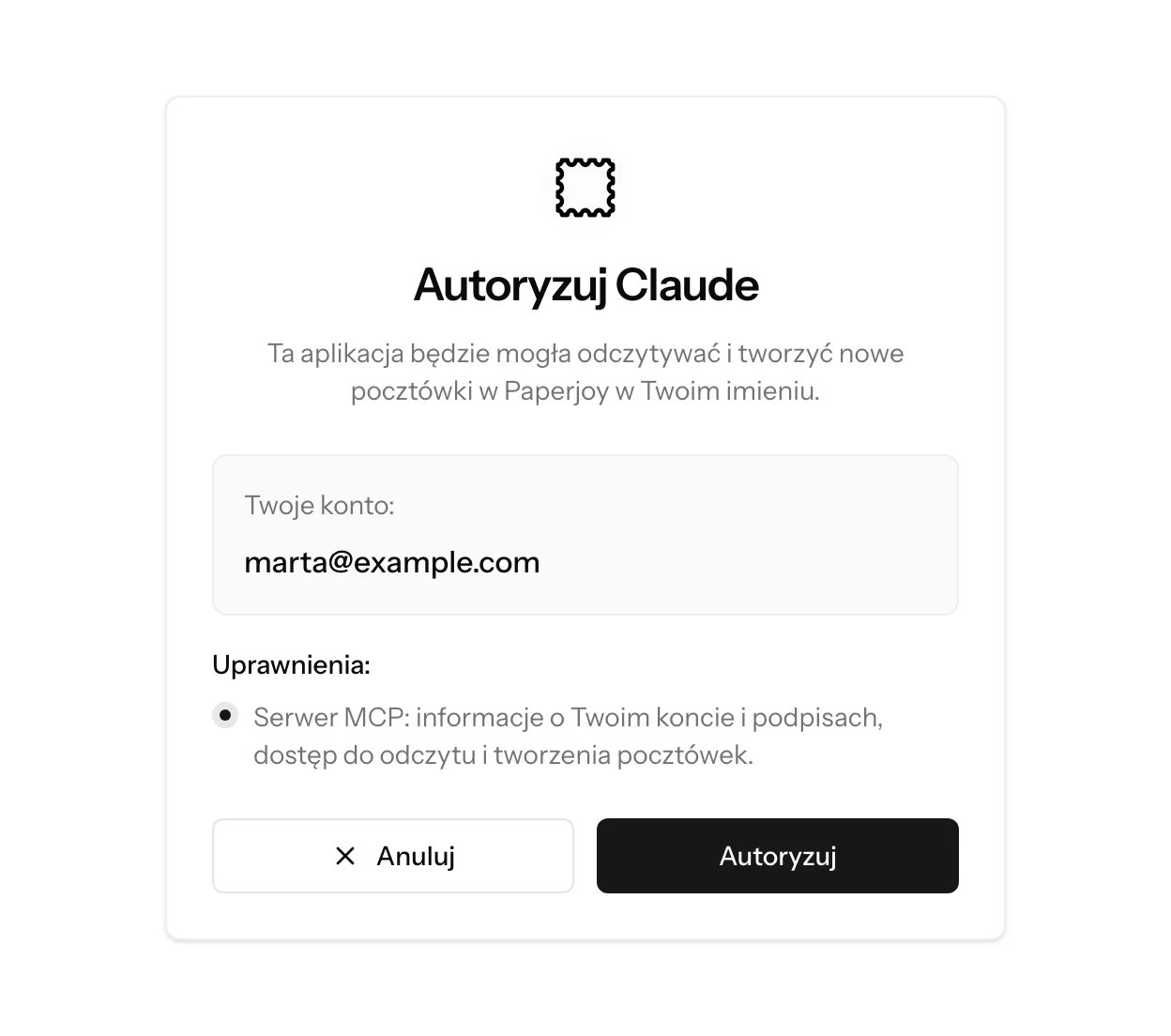
The approval screen lists the account and the permissions your assistant receives.
Available tools
Things to ask
- “How many Paperjoy credits do I have left?”
- “Draft a thank-you card for Studio Forma in Poznań and show me a preview.”
- “Send the same birthday card to these three people, using my custom signature.”
- “Has the card to Katarzyna Zielińska been sent yet?”
Troubleshooting
- No browser window opened. Run the client’s login command again, or click Connect or Authenticate in its MCP settings.
- Paperjoy shows up but has no tools. Check that the URL is exactly
https://paperjoy.co/mcp, then restart or refresh the client. - An API key was rejected. That’s expected. The MCP server only accepts the OAuth sign-in.
- The client asks for a device code. Use a client that supports the authorization code flow with PKCE.
Limits
- 120 MCP requests per minute.
- Ordering postcards (submitting a draft, or creating one with
draft: false) shares the daily limit of 100 with the API and the editor. Drafts don’t count. - Up to 100 open drafts at a time.
- Previews share the limit of 30 per minute.
review_url, so your assistant can hand you a link to review and send it yourself in the editor.
Sending needs a separate permission
Paperjoy asks for two permissions when you connect, and the approval screen lists both:
Without
mcp:submit, your assistant can prepare drafts but can’t send them. submit-postcard-tool and create-postcard-tool with draft: false then return an error asking you to send the draft from the dashboard, or to reconnect and approve mcp:submit.
Connections made before this permission existed only have mcp:use. Reconnect the server and approve access again to let your assistant send postcards.
The assistant only sees postcards and signatures from your own account.