Send a card
1
Open the editor
Click Edytor (Editor) in the top navigation, or go to paperjoy.co/playground.
2
Pick the handwriting
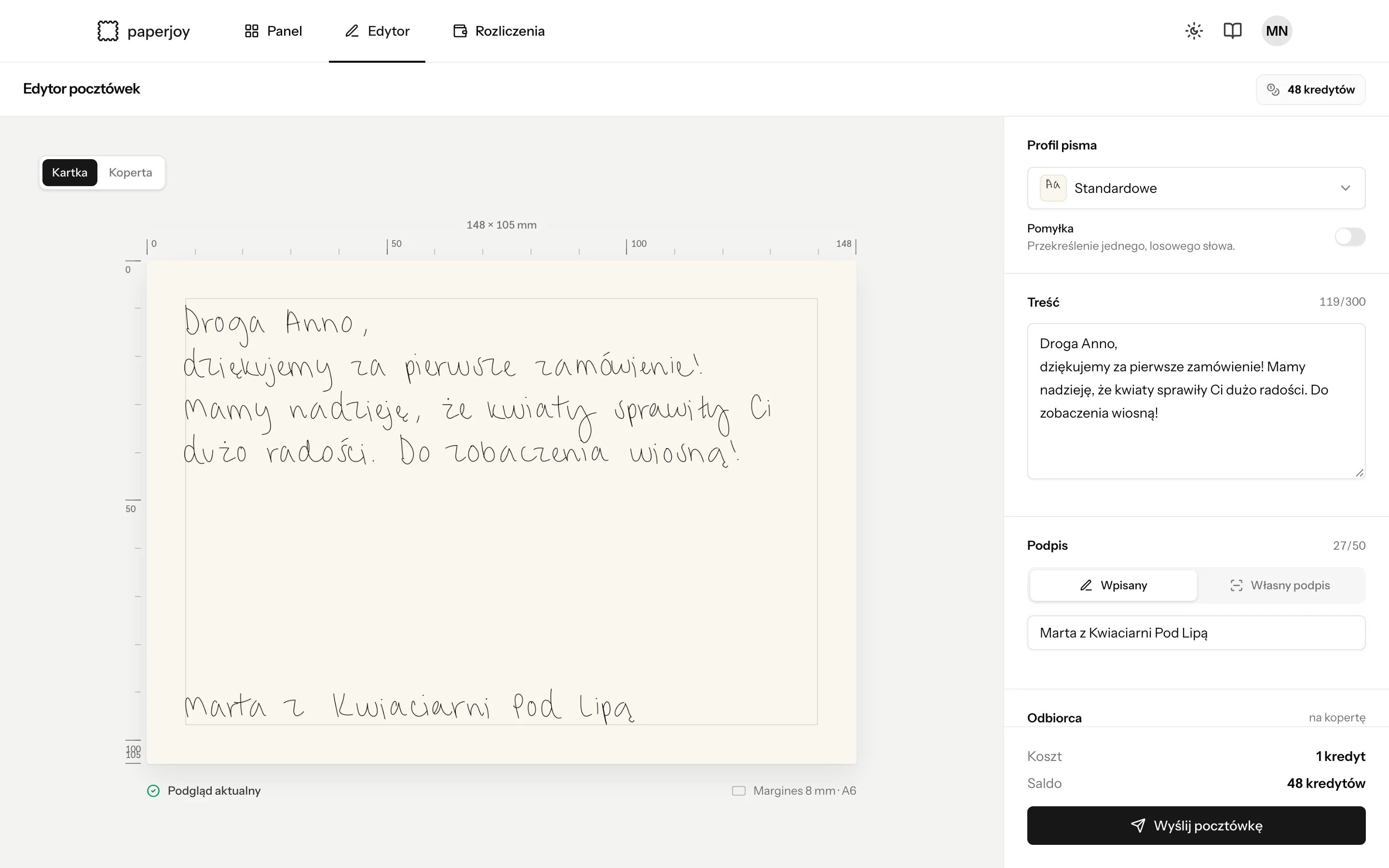
Under Profil pisma (Handwriting), choose Standardowe (
font-1) or Szybkie (font-2). Turn on Pomyłka (Mistake) to cross out one word and write it again, like a real person would.3
Write the message
Type up to 300 characters in Treść (Message). The preview updates as you type and shows exactly how the text wraps on the card.
4
Sign it
Under Podpis (Signature), type a sign-off on the Wpisany (Typed) tab, or pick your own signature on the Własny podpis (Custom signature) tab. See Custom signatures.
5
Address it
Fill in Odbiorca (Recipient): a person, a company, or both, and a Polish address. Switch the preview to Koperta (Envelope) to check the addressing.
6
Send
The footer shows the cost and your balance. Click Wyślij pocztówkę (Send postcard). The card appears on your Panel (Dashboard) with its status.
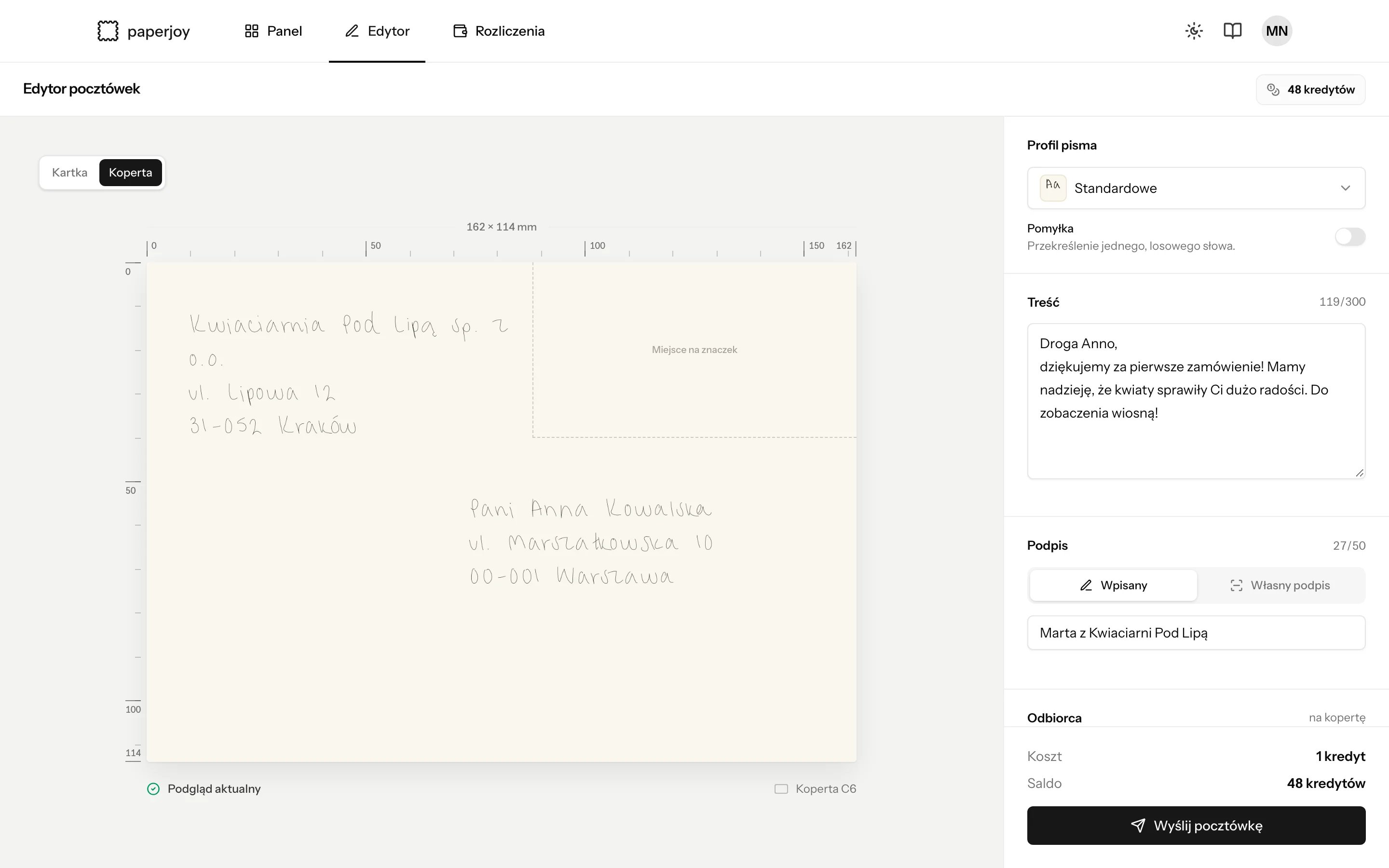
The envelope preview shows your return address and keeps the stamp area clear.
Follow your cards
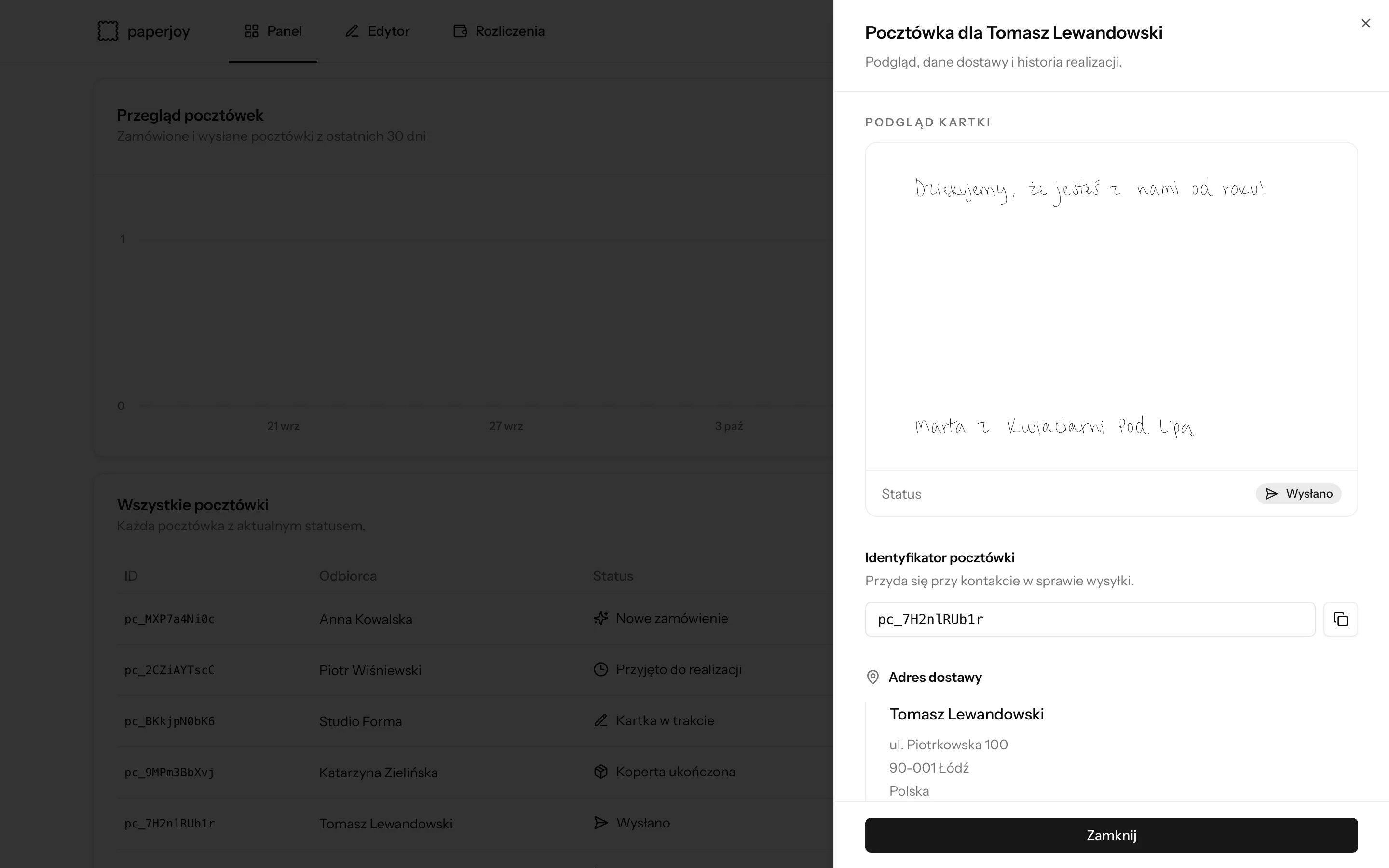
The Panel (Dashboard) lists every postcard in the current mode with its status. Click a row to open the card preview, the postcard ID, and the delivery address.