

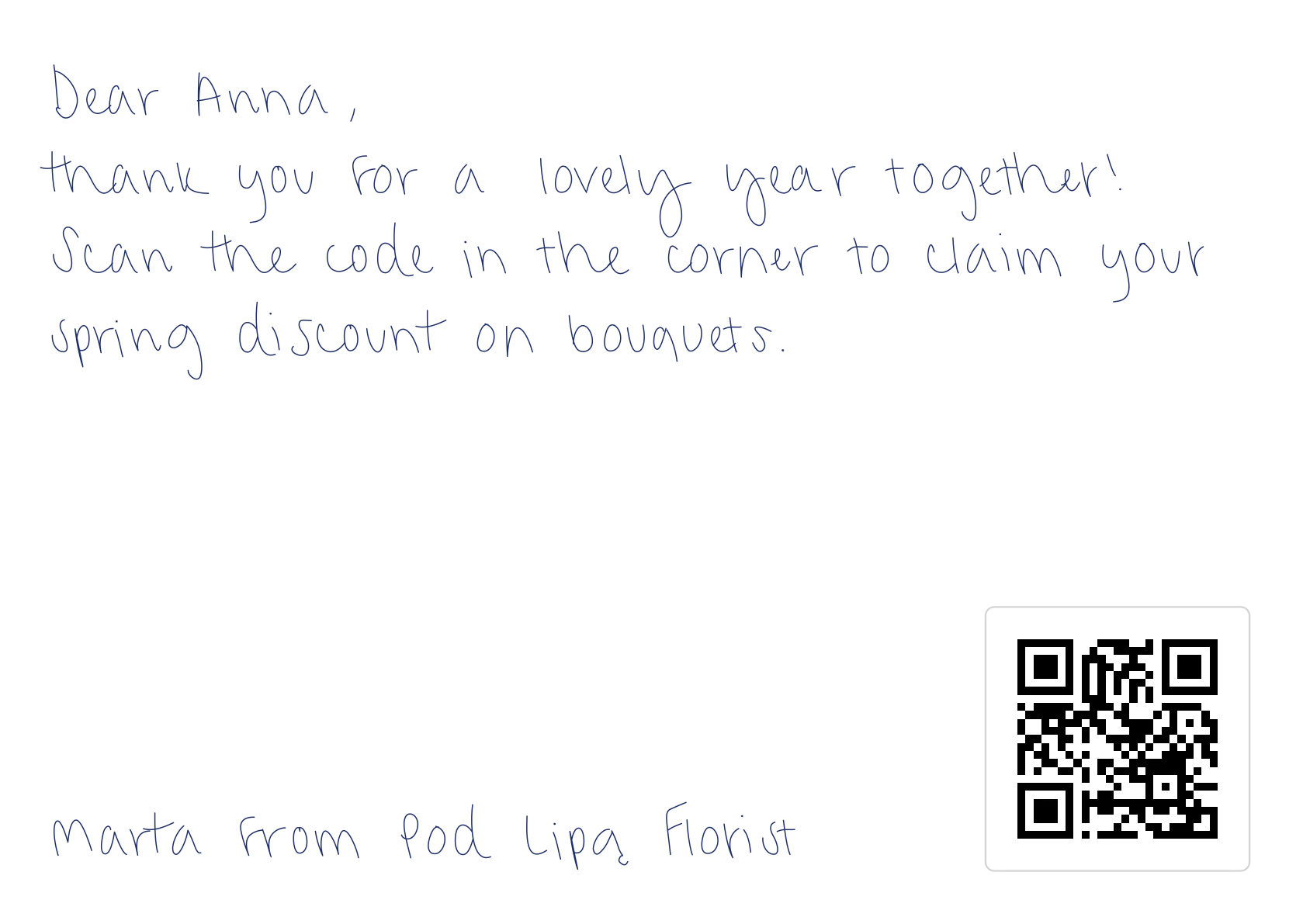
A preview from the Paperjoy renderer. Lines next to the sticker are shorter so the text never runs into it.
How it works
- You give the URL of your page, such as
https://example.com/spring. - The code on the sticker goes through a short
https://paperjoy.co/q/…link, a different one for each card. - When someone scans the code, Paperjoy counts the scan and redirects them to your URL right away.
utm_source=paperjoy&utm_medium=postcard to your URL, so visits from cards show up in Google Analytics and similar tools. If your link already has any utm_ parameter, we leave it unchanged, so you can set your own, such as ?utm_source=postcard&utm_campaign=spring.
Want the link to use your company’s address instead of paperjoy.co? Connect a custom domain.
The QR code is included in the postcard’s price. A card with a code costs the same as one without: one credit.
Add a QR code
- Editor
- CSV campaign
- API
- AI assistant
In the editor, enter the URL under Kod QR (QR code). The preview shows the sticker right away, along with how the text wraps next to it.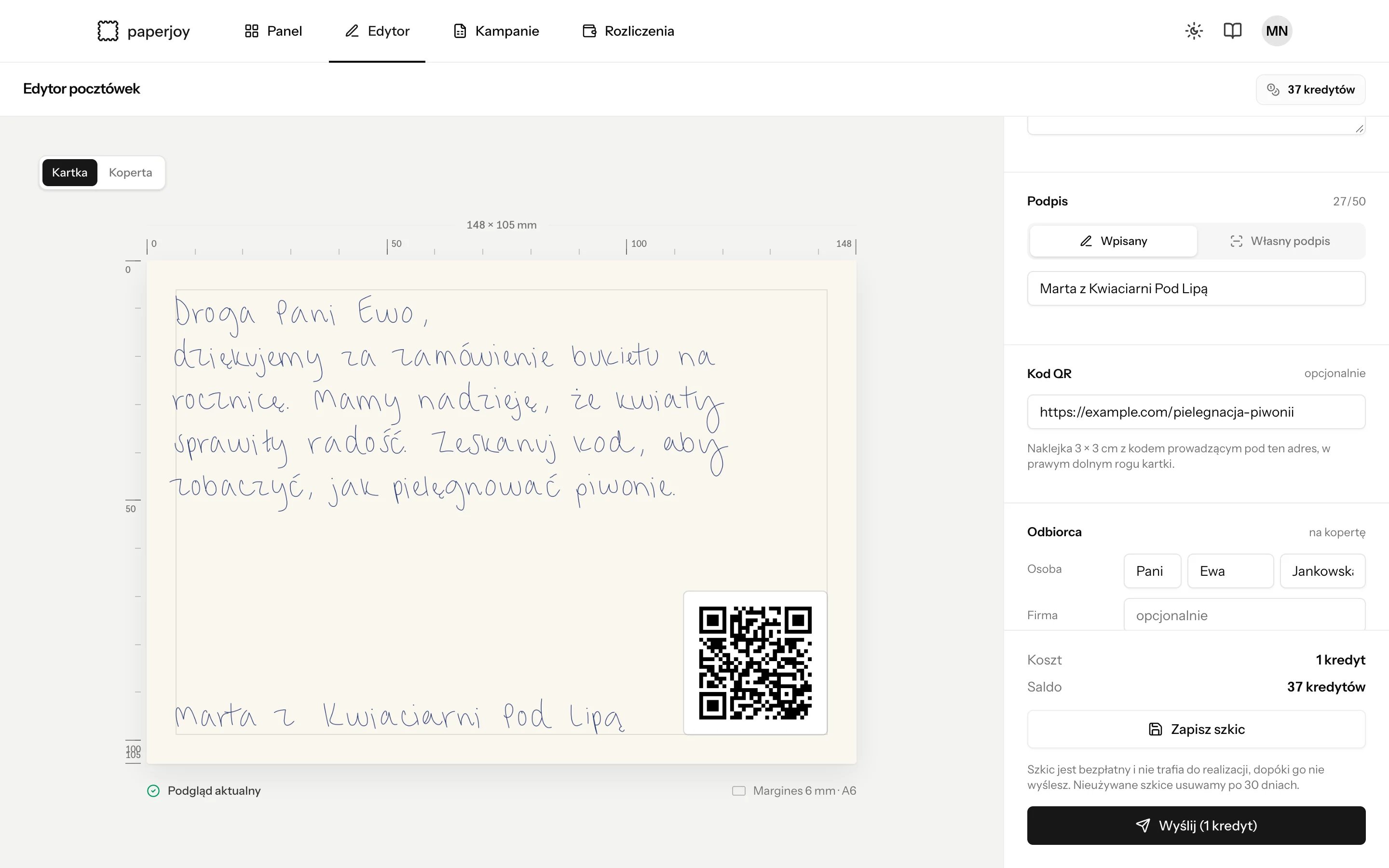
Choose a good URL
httporhttpsonly, up to 255 characters.- A shorter URL makes a sparser code. It scans more easily from a distance or in poor light.
- The page must work on a phone. Almost every scan comes from a phone.
- The page must stay up. Cards sit on desks and fridges for months. Don’t use links that expire.
- Say in the message what’s behind the code. “Scan the code to claim your discount” works better than a code with no explanation.
- The message has less room. Lines next to the sticker are shorter. If the message doesn’t fit, the editor and the API return a
card_fiterror before anything is ordered.
You can’t change the URL after the postcard is ordered. You can only change it in a draft.
Scan statistics
Once you send your first card with a code, the Panel (Dashboard) page shows scan statistics. The headline and tiles at the top show the number of scans and the scan rate.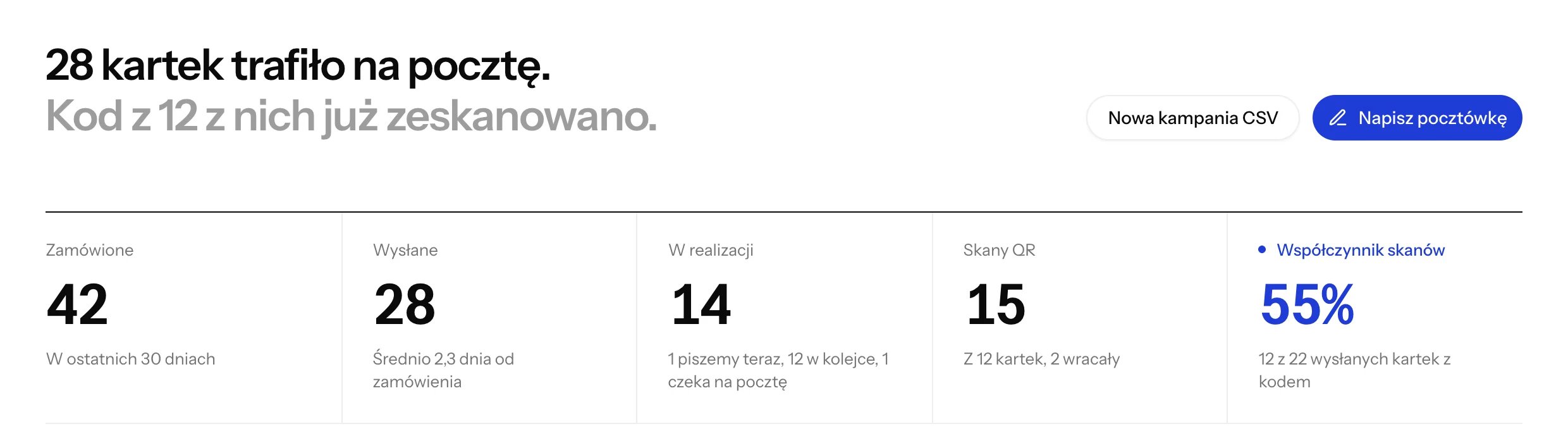
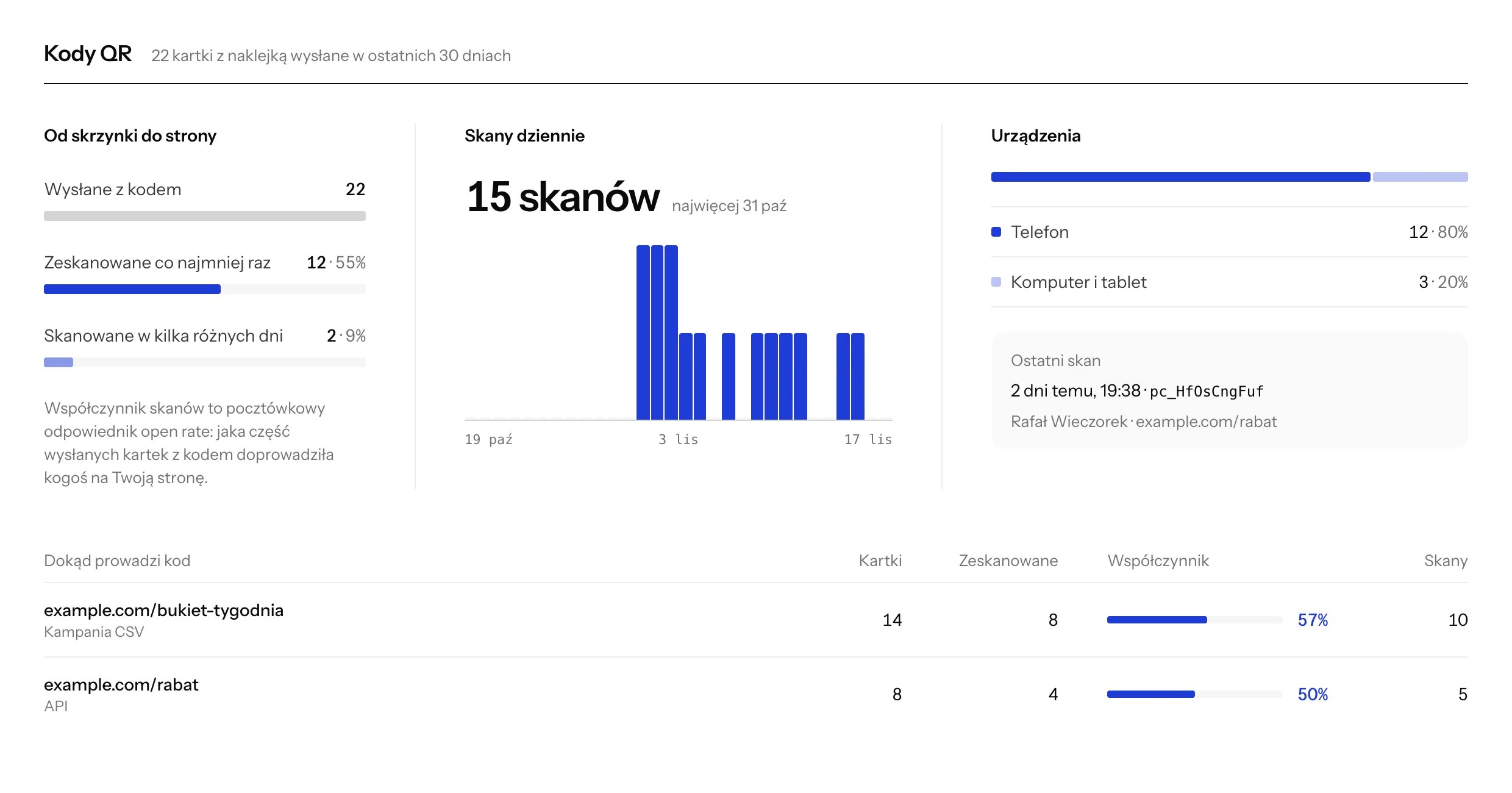
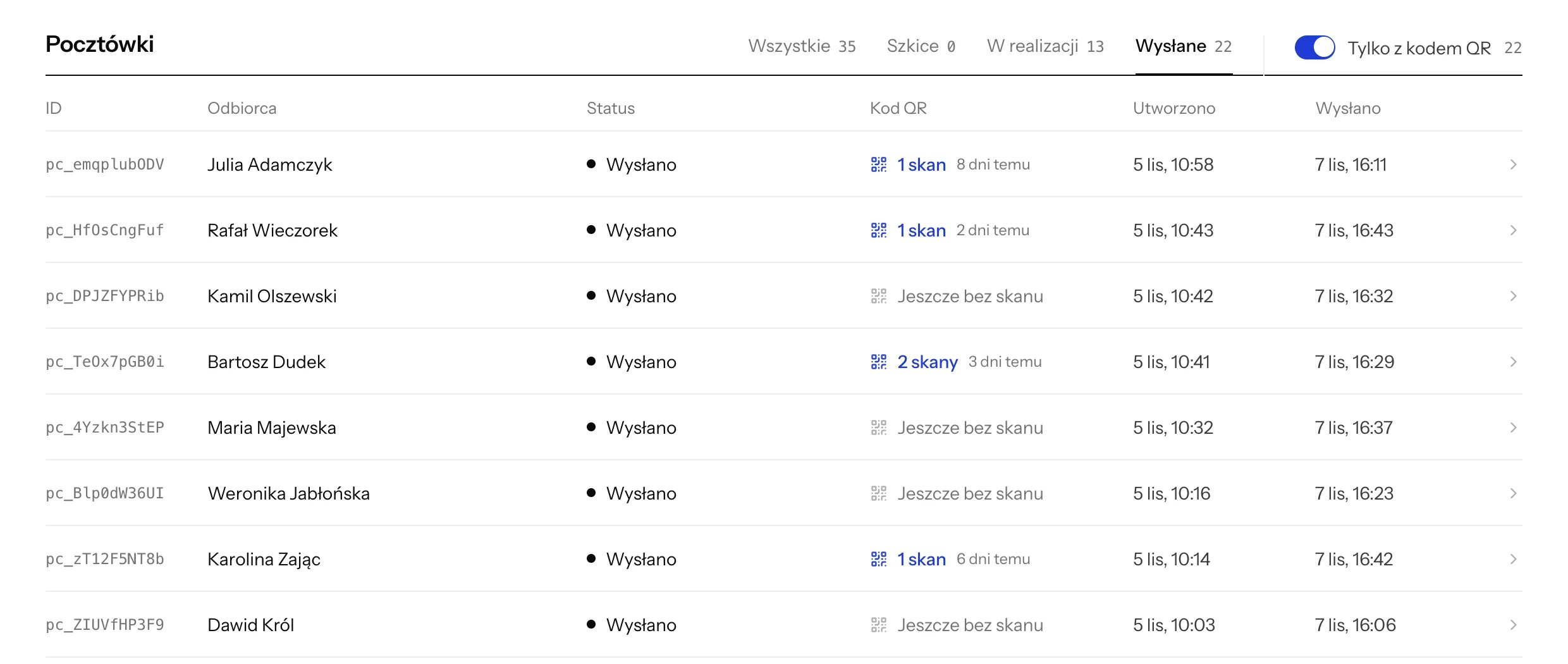
The postcard table at the bottom of the dashboard has a Kod QR (QR code) column with the scan count and the time of the latest scan. The Tylko z kodem QR (Only with a QR code) switch narrows the list to cards with a code.
Scans in the API
Every postcard with a code has aqr_scans field in API responses. A postcard without a code has qr_scans set to null.
countis every scan, including repeat scans by the same person.first_scanned_atandlast_scanned_atarenulluntil someone scans the code.- Fetch postcards with
GET /api/postcards, or one campaign’s postcards withGET /api/campaigns/{id}/postcards, to work out the scan rate in your own tools. - The API returns totals only. Devices, countries, and results per URL are in the Paperjoy app.
When the first scans arrive
A card takes 2–3 days to arrive, and the first scan usually comes a few days after mailing. Until then, the dashboard shows how many cards with a code are on their way and when to expect the first scans.What counts as a scan
- We count people opening the link. Link previews in messaging apps, bots, and link checks that don’t open the page are redirected but not counted.
- We don’t store IP addresses or full browser names. For each scan we keep only the time, the device type, the country, and an anonymous identifier that changes every day. That’s why we can’t tell the same person apart across days.