

https://paperjoy.co/q/… link. With a custom domain, the same link uses your company’s address, such as https://qr.yourcompany.com/q/…. Recipients who scan the code see your brand. Scan statistics work the same way.
Each company can connect one subdomain. You add one DNS record, and we issue the HTTPS certificate ourselves.
Connect a domain
1
Pick a subdomain
Use a subdomain you don’t use for anything else, such as
qr.yourcompany.com or go.yourcompany.com. A root domain such as yourcompany.com won’t work.The address can be up to 63 characters. A shorter address makes a sparser code that scans more easily.2
Add it in the Paperjoy app
Open Ustawienia (Settings) → Domena QR (QR domain). Enter the subdomain in the Subdomena (Subdomain) field and click Dodaj domenę (Add domain).
3
Add a CNAME record
At your domain provider (for example in Cloudflare, OVH, or your registrar’s panel), add this record. The Domena QR page shows it with copy buttons: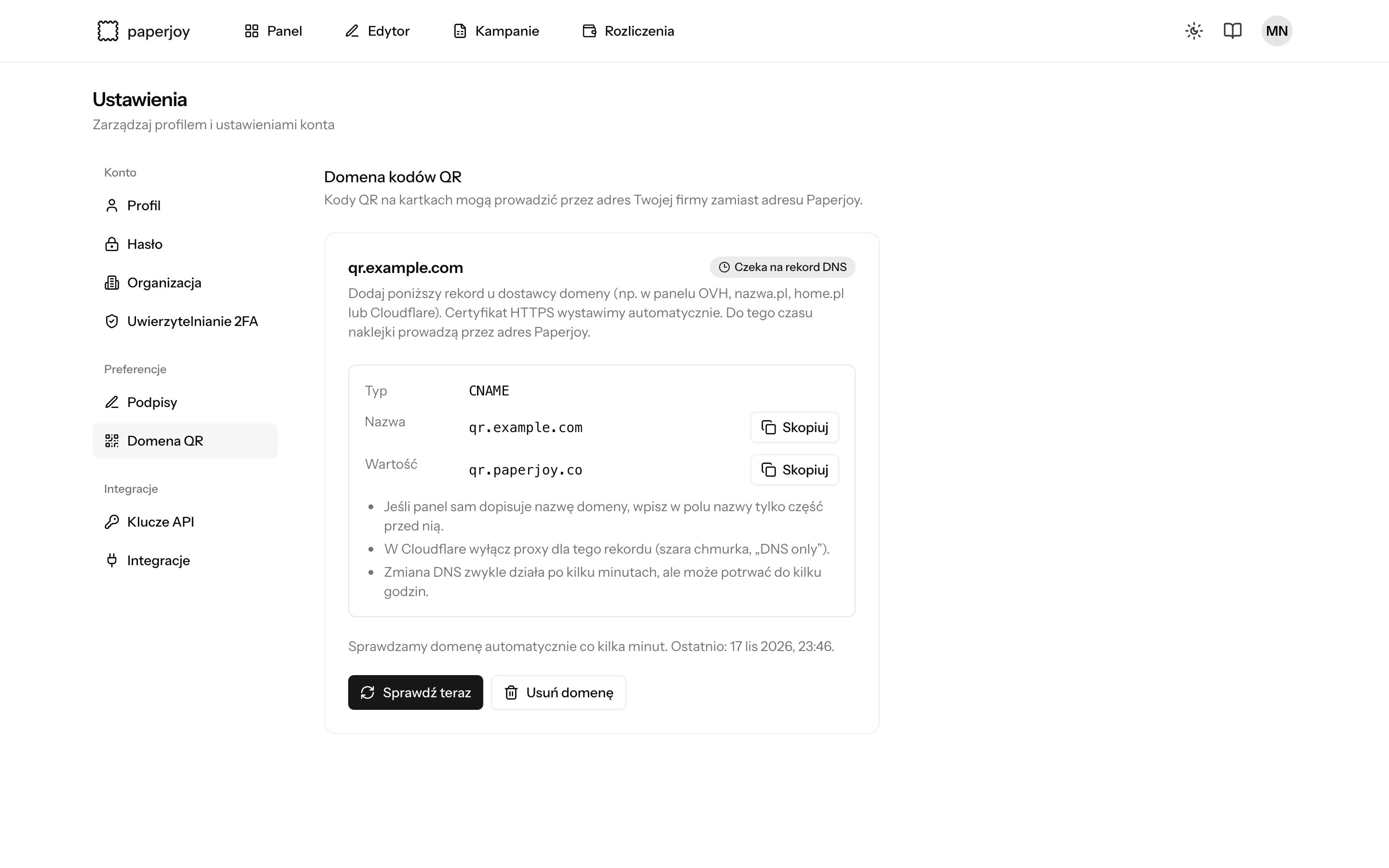
- If your provider adds the domain name for you, enter only the part before it in the name field, such as
qr. - In Cloudflare, turn off the proxy for this record (grey cloud, DNS only).
4
Wait for activation
A DNS change usually works within a few minutes but can take a few hours. For the first week we check the domain automatically every few minutes. After that, click Sprawdź teraz (Check now).Once the domain shows Aktywna (Active), new stickers use your address.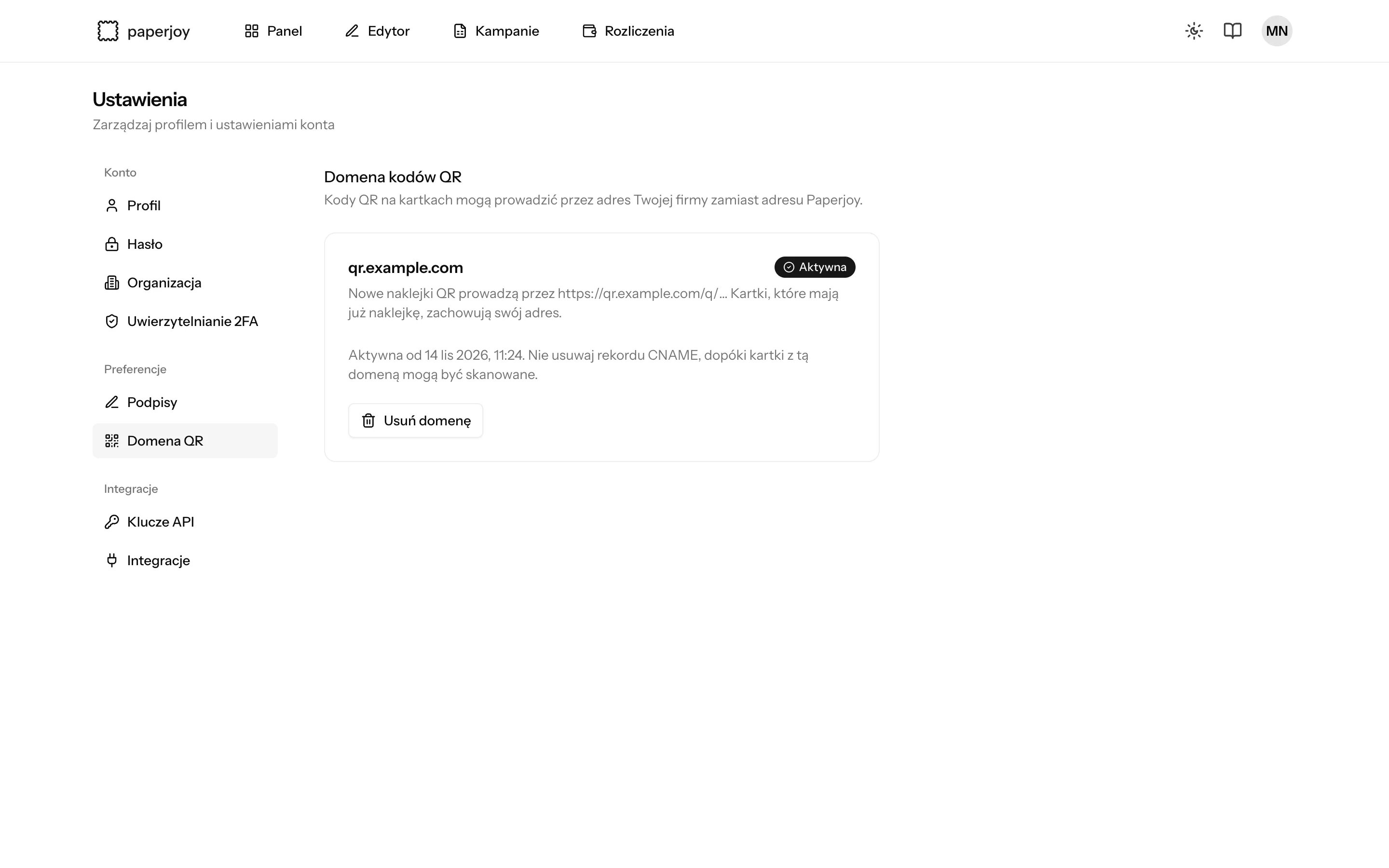
Domain statuses
While the domain is waiting or needs attention, the page shows messages from the certificate provider to help you find the problem.
Which cards get your address
- Cards we haven’t started writing. We fix the sticker’s address when the robot starts writing the card. If your domain is active then, the card uses it.
- Cards in production and sent cards keep their address. Adding, changing, or removing the domain never changes the link on a card that already has a sticker or is in production.
- Paperjoy links keep working. Cards sent earlier go through
paperjoy.co, as before.
UTM parameters
On your own domain, we addutm_source=qr_code&utm_medium=postcard to your URL, without the Paperjoy name. If your link already has any utm_ parameter, we leave it unchanged. See QR codes.